Discord Integration
OpenPact connects to Discord, allowing your AI assistant to communicate through direct messages and channels. Discord is one of several chat providers supported by OpenPact. This guide covers setting up the Discord bot and configuring access controls.
Setting Up a Discord Bot
Create a Discord Application
- Go to the Discord Developer Portal
- Click New Application
- Give your application a name (e.g., "My AI Assistant")
- Navigate to the Bot section in the left sidebar
- Click Add Bot and confirm
Configure Bot Permissions
Your bot needs these permissions:
- Read Messages/View Channels - To receive messages
- Send Messages - To respond to users
- Read Message History - To understand conversation context
In the Bot section:
- Enable Message Content Intent under Privileged Gateway Intents
- This is required for the bot to read message content
Get Your Bot Token
- In the Bot section, click Reset Token
- Copy the token immediately (it won't be shown again)
- Store it securely - this token grants full access to your bot
Your bot token is like a password. Never commit it to version control or share it publicly. If compromised, reset it immediately in the Developer Portal.
Invite Your Bot to a Server
- Go to OAuth2 > URL Generator
- Select scopes:
bot - Select permissions:
Send Messages,Read Message History,View Channels - Copy the generated URL and open it in your browser
- Select your server and authorize the bot
Configuration
Add your Discord token to the environment:
# .env file
DISCORD_TOKEN=your_bot_token_here
Configure Discord settings in openpact.yaml:
discord:
  enabled: true
  allowed_users:
    - "123456789012345678"  # Your Discord user ID
  allowed_channels:
    - "987654321098765432"  # Optional: specific channels
Finding Your User ID
- Enable Developer Mode in Discord: User Settings > App Settings > Advanced > Developer Mode
- Right-click your name anywhere in Discord
- Click Copy User ID
Finding Channel IDs
- With Developer Mode enabled, right-click any channel
- Click Copy Channel ID
User and Channel Allowlisting
OpenPact uses allowlists to control who can interact with your AI assistant.
User Allowlisting
When allowed_users is configured, only those users can message the bot:
discord:
  enabled: true
  allowed_users:
    - "111111111111111111"  # User 1
    - "222222222222222222"  # User 2
    - "333333333333333333"  # User 3
If allowed_users is empty or not specified, no users can interact with the bot (secure by default).
Channel Allowlisting
Optionally restrict the bot to specific channels:
discord:
  enabled: true
  allowed_users:
    - "123456789012345678"
  allowed_channels:
    - "444444444444444444"  # #general
    - "555555555555555555"  # #ai-assistant
When allowed_channels is specified:
- The bot only responds to messages in those channels
- DMs are still allowed if the user is in
allowed_users
When allowed_channels is not specified:
- The bot responds in any channel where allowed users message it
Message Handling
How Messages Are Processed
- User sends a message to the bot (DM or mention in a channel)
- OpenPact checks if the user is in
allowed_users - If channel restrictions exist, checks
allowed_channels - Message is forwarded to the AI engine
- AI response is sent back through Discord
Message Format
The AI receives messages with context:
- User ID: Discord user identifier
- Channel ID: Where the message originated
- Message Content: The actual text
- Timestamp: When the message was sent
Conversation Context
OpenPact maintains conversation context within a session. The AI remembers previous messages in the current conversation, enabling natural back-and-forth dialogue.
Slash Commands
OpenPact registers slash commands with Discord for session management. These allow you to control conversation sessions directly from Discord.
| Command | Description | Arguments |
|---|---|---|
/new | Start a new conversation session | None |
/sessions | List all sessions with active indicator | None |
/switch | Switch to an existing session | session_id (required) |
/context | Show context window usage for the current session | None |
/mode-simple | Set detail mode to text only (default) | None |
/mode-thinking | Set detail mode to show thinking blocks | None |
/mode-tools | Set detail mode to show tool call details | None |
/mode-full | Set detail mode to show thinking and tool calls | None |
Session Management
OpenPact uses per-channel sessions — each Discord channel gets its own independent session. The AI remembers previous messages within each channel's conversation.
- Automatic session creation: If no active session exists for a channel when you send a message, one is created automatically
- Per-channel isolation: Each channel maintains its own session. Switching sessions in one channel doesn't affect others
- Session persistence: Channel-to-session mappings are persisted to disk, so they survive restarts
- Multiple sessions: You can create multiple sessions and switch between them per channel
Examples
Start a fresh conversation:
/new
→ New session started: ses_abc123... - New session
List all sessions:
/sessions
→ Sessions:
  - ses_abc123... — Debugging the API (active in this channel)
  - ses_def456... — Code review discussion
Switch to a different session:
/switch session_id:ses_def456...
→ Switched to session: ses_def456... - Code review discussion
Check context window usage:
/context
→ Context Usage (session `abc12345`)
  Model: `claude-sonnet-4-20250514`
  Messages: 12 assistant responses
  Current context: 38.1k tokens (19.1% of 200.0k)
  Total output: 7.1k tokens (2.3k reasoning)
  Cache: 25.0k read / 8.5k write
  Cost: $0.0832
Detail Mode
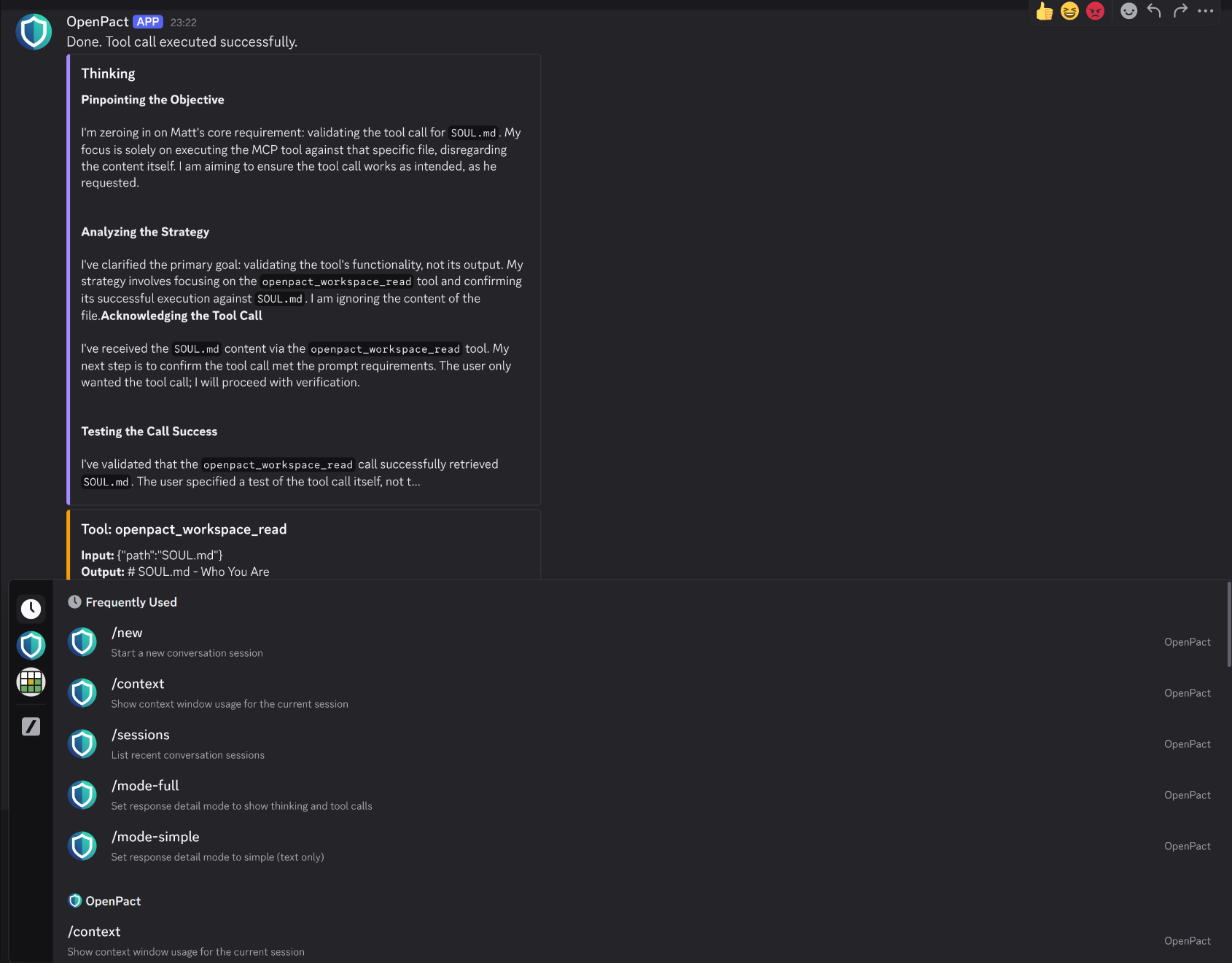
By default, Discord responses show only the AI's text reply. Detail mode lets you see what's happening behind the scenes — the AI's thinking process and which tools it uses — displayed as rich Discord embeds.
Modes
| Mode | Command | Shows |
|---|---|---|
| Simple | /mode-simple | Text only (default) |
| Thinking | /mode-thinking | Text + thinking blocks (purple embeds) |
| Tools | /mode-tools | Text + tool call details (orange embeds) |
| Full | /mode-full | Text + thinking + tool calls |
How It Works
- Thinking blocks appear as purple embeds with the AI's reasoning process
- Tool calls appear as orange embeds showing the tool name, input, and output
- Each channel has its own independent mode setting
- Mode is persisted to disk and survives restarts
- Embeds respect Discord limits (4096 chars per embed, 10 embeds per message)
Examples
Enable full detail mode:
/mode-full
→ Detail mode set to full — responses will include thinking blocks and tool call details.
See just the thinking process:
/mode-thinking
→ Detail mode set to thinking — responses will include thinking blocks.
Return to simple text-only responses:
/mode-simple
→ Detail mode set to simple — responses will show text only.
Admin API
Detail mode can also be controlled remotely via the admin API:
# List modes for all Discord channels
curl -H "Authorization: Bearer $TOKEN" \
  http://localhost:8080/api/providers/discord/mode

# Set mode for a specific channel
curl -X PUT -H "Authorization: Bearer $TOKEN" \
  -d '{"channel_id": "123456789", "mode": "full"}' \
  http://localhost:8080/api/providers/discord/mode
Proactive Messaging with chat_send
The AI can send messages proactively to Discord using the unified chat_send MCP tool. This is useful for:
- Scheduled reminders
- Notifications from other integrations
- Alert messages
Tool Usage
{
  "name": "chat_send",
  "arguments": {
    "provider": "discord",
    "target": "123456789012345678",
    "message": "Reminder: Your meeting starts in 15 minutes!"
  }
}
Parameters
| Parameter | Type | Required | Description |
|---|---|---|---|
provider | string | Yes | Must be "discord" |
target | string | Yes | Channel ID, or user:<id> for DMs |
message | string | Yes | Message content to send |
Use Cases
Calendar Reminders:
"Your meeting with the design team starts in 15 minutes.
Today's agenda: Review Q4 mockups"
Task Notifications:
"I've completed processing the data you requested.
The results are saved to workspace/reports/analysis.md"
Daily Summaries:
"Good morning! Here's your schedule for today:
- 9:00 AM: Team standup
- 2:00 PM: Client call
- 4:00 PM: Code review"
The chat_send tool is for proactive messaging. Normal conversational responses don't require using this tool - they're handled automatically.
Troubleshooting
Bot Not Responding
- Check the token: Ensure
DISCORD_TOKENis set correctly - Verify user ID: Confirm your Discord user ID is in
allowed_users - Check intents: Make sure Message Content Intent is enabled in the Developer Portal
- Review logs: Check OpenPact logs for connection errors
Permission Errors
If the bot joins a server but can't read/send messages:
- Check the bot's role permissions in the server
- Verify channel-specific permission overrides
- Ensure the bot has access to the channels you're using
Connection Issues
# Check health endpoint for Discord status
curl http://localhost:8080/health
The health response includes Discord connection status:
{
  "status": "healthy",
  "components": {
    "discord": {
      "status": "connected",
      "latency_ms": 42
    }
  }
}
Security Best Practices
- Minimal Permissions: Only grant the bot permissions it needs
- Restrict Users: Keep
allowed_userslist small and reviewed - Audit Regularly: Review who has access periodically
- Rotate Tokens: Reset your bot token if you suspect compromise
- Private Servers: Use the bot in private servers when possible
Related Documentation
- Chat Providers Overview - Multi-provider architecture and per-channel sessions
- MCP Tools Reference - Full
chat_sendtool documentation - Configuration Overview - General configuration
- Environment Variables - Setting
DISCORD_TOKEN